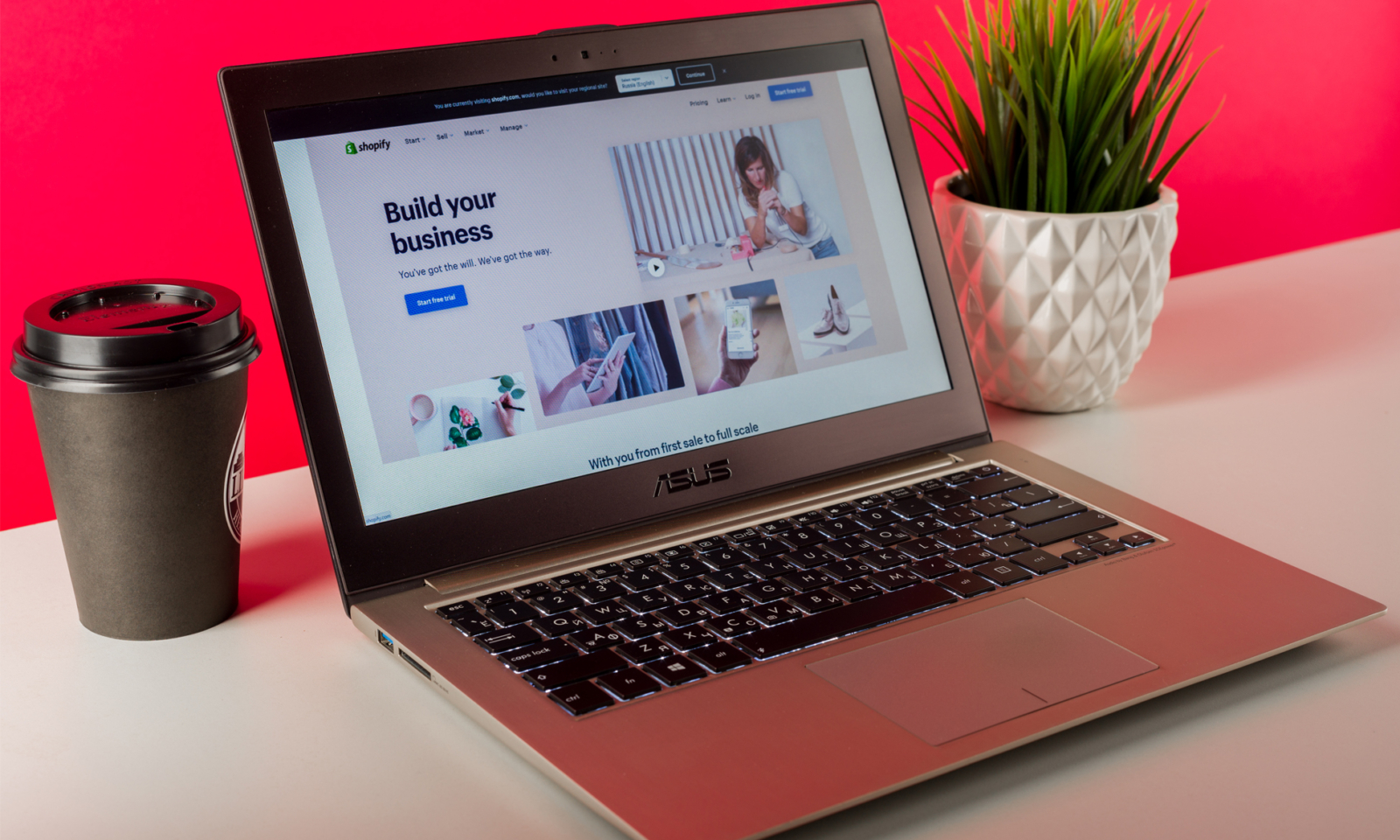
Shopify has quickly become one of the most popular ecommerce platforms around, in part due to its user friendly interface. This makes it a great choice for merchants of all levels, but if you haven’t used it before, getting started can seem a little daunting.
In this post, we provide a detailed overview of how to use Shopify, covering everything from tags to themes.
How easy is Shopify to use?
Shopify is generally considered to be a lot easier to use compared to other ecommerce platforms. This is because it allows business owners to manage all aspects of their store in one place from a simple interface. This includes finances, products, marketing, shipping and day-to-day operations. For a more detailed comparison with the other most popular platform, take a look at our Magento vs Shopify blog.
How does Shopify work?
Shopify is an all-inclusive ecommerce platform used for selling products online. There are several plans to choose from, paid for via a monthly subscription. Once you’ve chosen the right plan for your business, you can then create your own online store which can be used to promote, sell and ship products to customers.
The Shopify dashboard explained
Once you’ve logged into your Shopify account, you can select an online store and view your dashboard. You’ll be able to view a snapshot of your store’s performance metrics such as total sales, orders and visitor data.
To the left of the screen you’ll find a sidebar menu which gives you access to the following key components of your online store.
Products & collections
This is where you can add products to your store and organise them into collections. When uploading products, you’ll find sections where you can add a title, description, tags (more on these later) and images, plus a meta title and description. This setup means that optimising your products for search engines is very straightforward. Collections allow you to structure your online store in a way that benefits user experience and search rankings, and merchandise how you see fit, whether this be based on stock level, price or aesthetics (or a combination of all three). You can also check your inventory and manage gift cards in this section of the dashboard.
Orders
The Orders button will take you to a list of all of your customer’s orders, providing information such as order number, customer name, fulfilment status, and whether payment has been made. This makes it easy to identify and keep track of any issues.
Marketing
Shopify also allows you to launch multi-channel marketing campaigns from your dashboard then track sessions, orders and revenue generated by these campaigns.
Discounts
Most ecommerce stores will use discount codes to entice consumers to purchase. This can easily be done via the discount section of the dashboard. Simply click on the Create Discount button located in the top right corner of the screen then choose the value and code your customers will need to input at the checkout. Shopify will list all of your previous discounts and how many times they have been used, so you can measure success and use this information to inform your ecommerce strategy going forward.
Shopify POS
Shopify POS (Point of Sale) is an integrated system that allows Shopify merchants to sell products in physical retail locations using the same platform as their online store. It works by syncing inventory, orders, and customer data across both online and offline channels, ensuring seamless management and consistency. You can use the Shopify POS app on tablets or smartphones to process transactions, accept various payment methods, apply discounts, and manage customer information. This integration enables businesses to offer a unified shopping experience, streamline operations, and gain insights from combined online and offline sales data, making Shopify a great choice for omnichannel retailers.
How to use tags in Shopify
Shopify tags can be used to group, filter and make bulk changes. They remain a crucial tool for organising and categorising products, collections, customers and more.
Tags won’t be displayed to customers, but you and your team will be able to view and amend them in your Shopify dashboard.
The Shopify tag types are as follows:
Product
Shopify product tags can be added or removed via a specific product’s details page. You can then filter products by tag on the Products page and the Inventory page. You can use product tags as selection criteria when building a collection or as filters when you’re creating a menu. Tags also influence which products are displayed when a customer searches for a matching term on your website.
Transfer
Transfers allow you to record, track and receive incoming purchase orders/inventory from suppliers. Transfer tags can be added/removed on a specific transfer’s details page. Transfers can be filtered by tag on the Transfers page.
Customer
Customer tags work in the same way as those above and can be accessed via the Customers page.
Blog post
You can also add and remove tags on specific blog posts to group certain blogs together and allow readers to filter by topic.
Order
Order tags can make managing your online store’s orders easier. These also come in handy when integrating third party apps such as ReCharge, if you operate a subscription based payment model. You can use them to group orders together based on certain attributes, such as shipping methods.
Draft order
Draft orders allow you to create orders on behalf of customers. When you create an order from a draft order, draft order tags are carried over and added as order tags automatically.
How to use Shopify themes
Your Shopify theme is a template that determines the look and feel of your website. You can upload your own, select one of Shopify’s free options or buy a paid theme from the Shopify Theme Store. You can add multiple themes to your account to preview and compare, or save previous versions of your theme as templates if you want to update it to reflect new seasons or events.
Many of Shopify’s pre-made themes have been designed for specific business types or industries, such as stores with larger product catalogues or restaurants that have differing needs to an ecommerce business. The number of themes you can add depends on your Shopify plan, but only one can be published at a time. Access your store’s themes via Online Store>Themes.
If you have the budget and resources to create your own, there are many benefits to custom storefront Shopify themes, from bespoke functionality to distinctive brand identity.
Shopify apps
There are 1000s of third party apps available that can easily be integrated into your Shopify store. These apps, built by trusted partners (and Shopify in some cases), increase usability and add functions that make the day-to-day running of your business simpler, streamlining processes such as bulk uploading/tagging, bulk price changes (both handy for launching sales) and subscription based purchases. You can browse and download apps via the Shopify app store.
How to use Shopify Magic and Sidekick
Shopify recently added a suite of free, AI-enabled features designed to make it easier for merchants to start, run and grow their businesses. This set of tools is collectively referred to as Shopify Magic, which is integrated across multiple aspects of your Shopify store. Shopify Magic is available for all subscription plans, though the access and availability of specific features may vary.
Text generation
Shopify Magic automatic text generation can be used to speed up the writing process. Shopify utilises LLMs (large language models) to generate suggestions for content such as product descriptions, email subject lines and headings, analysing the information you provide. You can use Shopify Magic to generate content across multiple aspects of your online store, including product descriptions, landing pages, blog posts and the theme editor.
Sidekick
Sidekick is an AI-powered commerce assistant designed to boost productivity. It’s trained to know all of Shopify’s features and can therefore offer personalised, relevant support for a range of tasks, for example giving step-by-step instructions for setting up shipping.
Media generation
Shopify Magic allows merchants to use AI to make professional quality image adjustments without the need for additional software or design expertise. For example, with Shopify Magic you can remove the background from a product image, or replace the background with either a solid colour or an AI-generated scene. You can select from preset scene prompts or generate a background using your own keywords or short phrases.
Theme generation
One of Shopify’s most recent AI-powered features, you can now use Shopify Magic to create a free, custom theme for your online store with just a simple description.
Shopify pricing plans: what’s included?
We’ve touched on the fact that Shopify offers a tiered pricing system, but how much does it cost to run a Shopify store?
Basic, Shopify and Advanced: the first three (and most popular) options are basic, standard and advanced plans, which cost £19, £49 and £259 per month respectively. All three of these options offer omnichannel sell-anywhere features and a full suite of order and customer management features. The higher up the tiers, the lower the transaction fees, plus you’ll be able to access bigger shipping discounts and more advanced marketing and reporting tools.
Shopify Starter: at just £5 per month, Shopify offers the Starter plan to support in-person POS sales and an online buy button for non-Shopify websites, blogs, social media channels and messaging apps. This option of course comes with much more limited features; it doesn’t include an online store but works as a really affordable option for businesses that don’t require one.
Shopify Plus: Shopify Plus delivers enterprise-level features for high-volume, multi-million pound sellers who may find the features of the more basic plans lacking in comparison to their needs. Plus can handle thousands of transactions per minute and is built for international-selling, making it the ideal platform for large, international businesses looking to scale even further. Prices start from $2,300 per month for a three year term, but bespoke fees can be calculated for more complex business structures based on sales volume.
Setting up your store: step-by-step
While there is lots to consider when setting up a Shopify store, we’ve outlined the basic process below.
1. Add your products
Go to Products>Add Product to begin populating your online store. This is perhaps the most important step and one of the first things you should do – after all, there is no ecommerce website without products for customers to buy. You will also design the look and feel of your store around your products, so it’s a good idea to get these set up first. Once you’ve created them you’ll need to add all of the necessary content such as descriptions, images and prices. There is also an area for you to add Cost Per Item so you can see your profit margins.
2. Create key pages
Whilst product pages are the most important aspect of your online store, you’ll need more than these in order to be successful. Pages that offer information about your store will help to answer any questions customers may have, plus contribute to establishing a strong brand identity and tone of voice. Whilst you don’t necessarily need all pages ready for launch, we recommend having an About, Contact, FAQ and Policy page in place before you invite customers to shop. Landing pages can also help you rank in search for keywords related to your store, for example location-based pages if you have a showroom or physical store. You can create pages by clicking Online Store>Pages.
3. Choose your theme
Now it’s time to think about what you want your website to look like. Each theme comes with a set of different styles and features, so be sure to preview and test them out before committing. You can also set colours, typography etc. to ensure your website is on brand. If you are using a custom theme you can upload this via the Themes section of the Shopify Dashboard.
Your checkout process can also be customised in Theme Settings, where you can choose how your customers can check out, customise it to match your branding and put shipping updates in place.
4. Set up shipping
Shipping is often one of the more complex aspects of setting up an online store. You will need to consider product weights, shipping costs, packaging, destinations, carrier rates and profit per order. You can implement your shipping strategy by selecting Settings>Shipping.
5. Set up taxes
Any business that sells goods or services has to pay tax on each order from their store. There are some exceptions, such as digital goods in many jurisdictions, so make sure you do some research before launching your store. Shopify can make handling taxes a little easier by automatically calculating taxes using a default sales tax rate, but you should still consult a professional to ensure you’re charging the correct amount.
Go to Settings>Taxes to set your tax regions. From here you may edit the default rates or apply overrides if there are specific requirements for your region.
6. Set up payment gateways and payouts
This is when you decide which payment methods your store will accept and how you get paid. Go to Settings>Payments to set up your payment provider. If you use Shopify Payments, you’ll pay 0% in additional transaction fees.
7. Prepare for launch
Before opening the doors of your online store, there are a few things to take care of:
- Add your custom domain (Online Store>Domains)
- Install relevant sales channels such as Instagram, Shopify POS, etc (Sales Channels +)
- Set up tracking/analytics for marketing (Analytics>Reports)
8. Launch your online store
When your Shopify store is in the development stage, it’s protected by a password to stop anyone seeing it before it’s ready. To launch your store you’ll need to remove this password. You can do this under Settings>Preferences. Your store will then go from demo to fully fledged ecommerce business.
What can I sell on Shopify?
Shopify can be used to sell a wide range of goods, services and digital products, including (but not limited to):
- Physical products you pack and ship yourself
- Digital products that customers can download post purchase, such as artwork, ebooks and gift cards
- Services and experiences sold via online booking
- Online courses, workshops, consultations and webinars
- Subscriptions, custom product bundles and memberships with recurring payments
- Tickets and passes for events
- Rental clothing and equipment
- Dropship items
Is Shopify good for beginners?
Low start up costs and a user friendly interface make Shopify a great choice if you’re just starting out in the world of ecommerce. However, the great thing about Shopify is that it’s scalable and capable of growing with your business, making it a great long term investment and saving you from a time-consuming website migration later down the line.
Of course, we all need help and support when launching a new business or website – that’s where we come in. A fully-fledged Shopify agency, we can assist with all aspects of launching and running your Shopify store, from building a bespoke website from scratch to digital marketing and ecommerce consultancy.
Get in touch to chat about our Shopify development services.
